Harvest & Negate
Harvest & Negate finds converting search terms to target with new campaigns and wasteful terms to block with negative keywords.
SellerJar pulls candidates from three data sources so you catch opportunities you would miss scanning reports by hand. Accepting a harvest creates a real Sponsored Products campaign on Amazon. Accepting a negate adds a real negative keyword to the source campaign. Both are reversible from the page.
Before you start
- At least one Amazon account connected
- Active Sponsored Products campaigns with at least 14 days of data
This page appears in Advanced mode. In Essentials mode, open Recommendations in the sidebar and review search-term recommendations there instead (the review screen's breadcrumb reads Recommendations / Search term recommendations), which includes the same Blocked search terms list: see Recommendations. The daily automation switch is also available from the Automation page: see Automation.
How it works
SellerJar analyzes three data sources to find harvest and negate candidates:
| Source | What it finds | Based on |
|---|---|---|
| Search term recommendations | Search terms that converted in your campaigns (harvest) or drew clicks without sales (negate) | Your Search Term Reports |
| Organic search opportunities | Queries where shoppers find you organically but you are not advertising | Your Search Query Performance data |
| Amazon suggestions | Keyword and product targeting suggestions from Amazon | Amazon's internal suggestions |
Harvesting takes a proven search term and creates a new Sponsored Products campaign with a targeted bid for it.
Negating adds a negative keyword to a campaign so a wasteful term stops triggering your ads.
What's on the page
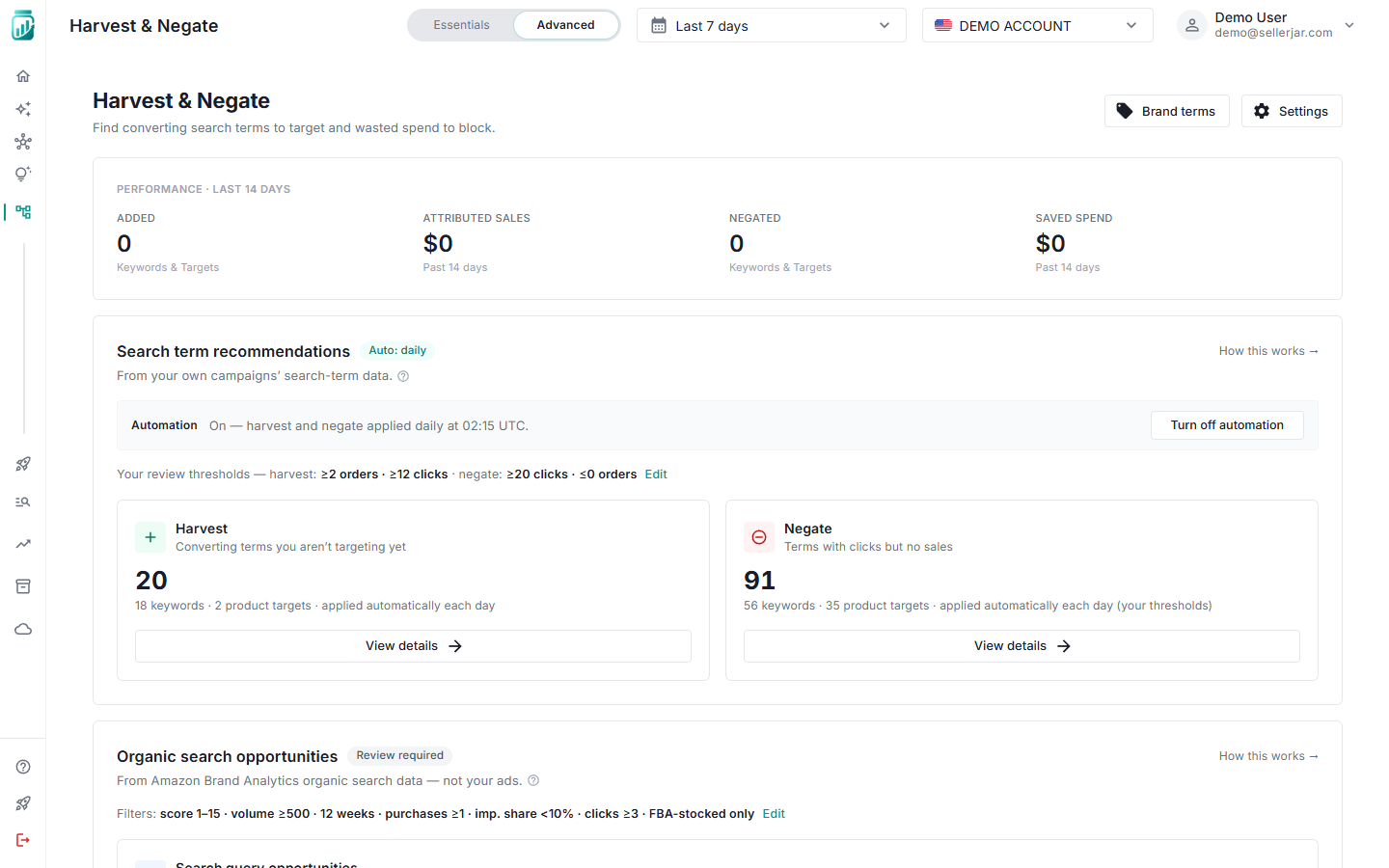
From top to bottom:
- At the top: Brand terms to manage your term lists (see Brand & Competitor Terms) and Settings to configure thresholds and campaign defaults
- Performance: four cards summarizing the last 14 days of harvest and negate activity
- Search term recommendations: Harvest and Negate cards from your campaign data, plus the Automation row for daily hands-free processing
- Organic search opportunities: the Search query opportunities card from Amazon's organic search data
- Amazon suggestions: Suggested keywords and Suggested product targets cards
- Recent actions: collapsible history of completed harvest and negate actions, with a Revert button on each
- Blocked search terms: collapsible list of every suggestion you dismissed, with an unblock button on each
Each recommendation card shows a count of available items and two buttons: View & accept to review individually, and Accept all to process everything at once.
Review and accept recommendations
- Click View & accept on any recommendation card.
- A modal opens with a table of recommendations. Search-term modals have two tabs: Keywords and Product targets.
- Use the ASIN filter to narrow results to a specific product.
- For each row, click the checkmark to accept or the X to dismiss.
- To act in bulk, tick rows with the checkboxes, then click Accept selected or Dismiss in the footer.
Result: accepted rows show a Processing chip while SellerJar creates the campaign or negative keyword on Amazon, usually within a minute. Accepted items stay gone after a reload, and accepting the same term twice is rejected instead of creating a duplicate.
In the Negate modal, every row shows the campaign it came from. When the same term is bleeding spend in several campaigns, it appears as one expandable row labeled with the campaign count; its Accept all and Dismiss all buttons act on every listed campaign at once, and each campaign's action is logged separately in Recent actions.
What happens when you accept
A harvest creates a new Sponsored Products campaign named:
{prefix}_SP_{match_type}_{KW|PT}_Harvested_{asin}_{id}
Amazon-sourced recommendations use Amazon instead of Harvested in the name. Product targets always use EXACT match regardless of your match type settings.
A negate adds a negative phrase keyword to the source campaign on Amazon.
Accept everything at once
Click Accept all on any card to harvest or negate every item in that category.
Result: the card shows Processing until the job completes, then a confirmation toast appears and the items leave the list.
Dismiss a suggestion you don't want
Click the X on a row (or select rows and click Dismiss) to hide a suggestion.
Result: the row disappears immediately with a confirmation toast, and the term moves to Blocked search terms at the bottom of the page.
A dismiss is scoped to the campaign it came from. If the same term later shows up in a different campaign, it appears as a new suggestion for that campaign. Dismissing a grouped multi-campaign row with Dismiss all blocks the term in each listed campaign.
Unblock a dismissed term
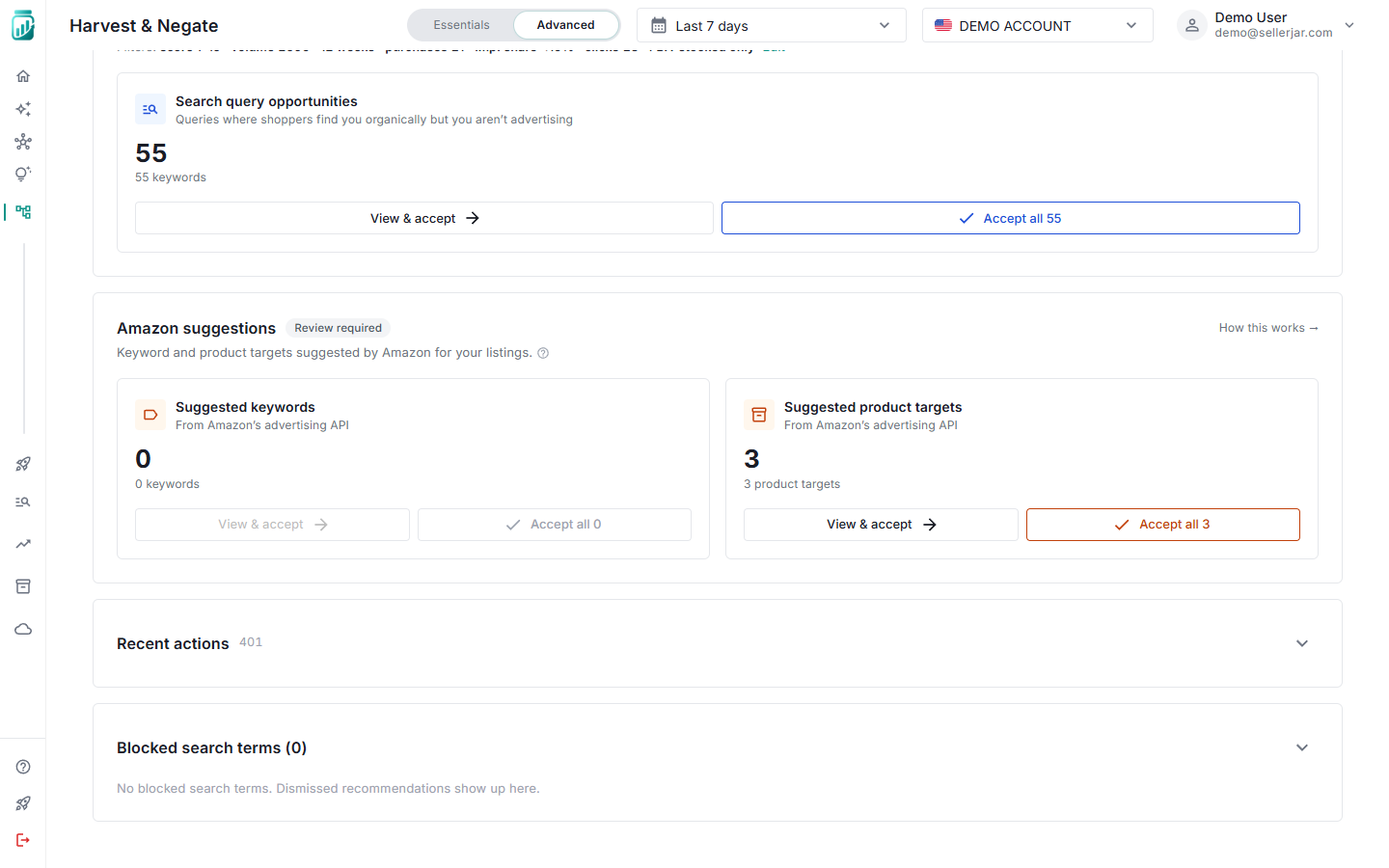
- Expand Blocked search terms.
- Find the term. Each row shows the term, its source, the campaign, and the date you blocked it.
- Click the unblock button on the row and confirm.
Result: the row leaves the list with a toast, and the term reappears in its suggestions card on the next refresh. You can dismiss it again at any time.
Revert an action
- Expand Recent actions.
- Click Revert on a completed row and confirm.
Result: for a harvest, SellerJar pauses the created campaign. For a negate, it removes the negative keyword. The row is marked as reverted, and the original suggestion may reappear since it is no longer applied. Revert is only offered for completed actions.
Turn on daily automation
Automation processes search-term recommendations daily without manual review. Organic search and Amazon suggestions always wait for your review.
- In Search term recommendations, find the Automation row.
- Click Turn on automation.
- A dialog explains exactly what the daily run does. Click Turn on to confirm.
Result: the row confirms automation is on and names the daily run time (02:15 UTC), and harvest cards show View details instead of View & accept. Automatic actions appear in Recent actions.
Two things to know:
- Daily harvesting uses fixed conservative thresholds (2+ orders, 10+ clicks, exact match), not your review thresholds. Daily negation does use your negate thresholds.
- Click Turn off automation at any time to return to manual review.
Settings reference
Click Settings at the top of the page. The panel has four tabs. Change values, then save.
Search terms tab
| Setting | What it controls | Default |
|---|---|---|
| Suggest terms with at least N orders and N clicks | Harvest thresholds | 2 orders, 10 clicks |
| Match types | Exact is always on; toggle Broad, Phrase, and Broad Modified | All off |
| Minimum words | Keywords with fewer words are hidden (harvest and negate; ASINs unaffected) | 2 |
| Flag terms with N+ clicks and N orders or fewer | Negate thresholds | 20 clicks, 0 orders |
| Include target-bleed candidates | Surface search terms served by exact product targets that didn't match the target ASIN | On |
| Bleed rows need N+ clicks | Click floor for Target Bleed rows, which also always require zero orders and zero sales | 5 |
Organic search (SQP) tab
| Setting | What it controls | Default |
|---|---|---|
| Min Score / Max Score | Relevance window, 1 to 100 (lower is more relevant) | 1 / 50 |
| Min Volume | Minimum search volume | 300 |
| Weeks Lookback | Weeks of data to analyze | 12 |
| Match types | Exact is always on; toggle Broad, Phrase, and Broad Modified | All off |
| Minimum words | Keywords with fewer words are hidden | 1 |
A fixed set of filters always applies on top of these (minimum purchases, impression share cap, click floor, FBA-stocked only); the tab shows the current values.
Amazon suggestions tab
| Setting | What it controls | Default |
|---|---|---|
| Match types | Exact is always on; toggle Broad, Phrase, and Broad Modified | All off |
| Minimum words | Keywords with fewer words are hidden | 1 |
New campaigns tab
| Setting | What it controls | Default |
|---|---|---|
| Campaign prefix | Text prepended to campaign names | (empty) |
| Bid method | Multiply the term's proven CPC or set a fixed bid | Multiplier |
| Bid multiplier | CPC multiplier when using the multiplier method | 1.2x |
| Manual bid | Fixed bid when using the manual method | $0.75 |
| SQP bid | Dedicated bid for organic-search harvests | $0.75 |
| Bidding strategy | Dynamic bids - down only, Dynamic bids - up and down, or Fixed bids | Dynamic bids - down only |
| Daily budget | Budget for each new campaign | $50 |
| Targets per campaign | Max keywords or products per campaign | 10 |
Under Negations on the same tab, three toggles control automatic negation when creating harvested campaigns (all on by default): Negate Branded Terms, Negate Competitor Terms, and Negate Unrelated Terms. These add negative phrase keywords at the campaign level. Manage the term lists via Brand terms at the top of the page: see Brand & Competitor Terms.
Negative phrase keywords are limited to 4 words (Amazon's own limit for phrase match negatives); a brand or competitor term longer than that is skipped automatically rather than failing the whole harvest.
Related
- Dayparting: automate bid adjustments by time of day
- Managing campaigns: manage the campaigns created by harvesting